

Prerequisites: Before creating a product you’re should have;
- Logged in and have access to CGIC App inventory management role.
- Your products, warehouses, and Suppliers/Customers are already set up
1. How Integration Works
Sales Orders → Delivery Notes → Stock Out
Sales Orders → Delivery Notes → Stock Out
- When a Sales Order is submitted, it reserves stock but doesn’t yet adjust inventory.
- Create and submit a Delivery Note against the Sales Order.
- Submitting the Delivery Note generates a Stock Entry of type Material Issue, which deducts the delivered quantity from your warehouse.
Purchase Orders → Purchase Receipts → Stock In
Purchase Orders → Purchase Receipts → Stock In
- When a Purchase Order is submitted, stock is not yet in hand.
- Create and submit a Purchase Receipt against the Purchase Order.
- Submitting the Purchase Receipt generates a Stock Entry of type Material Receipt, which increases your warehouse stock.
Returns & Exchanges
Returns & Exchanges
- For sales returns, use Delivery Note Return to credit inventory back via a Material Receipt stock entry.
- For purchase returns, use Purchase Return to debit inventory via a Material Issue stock entry.
2. Step-by-Step Setup
- Enable Stock Integration
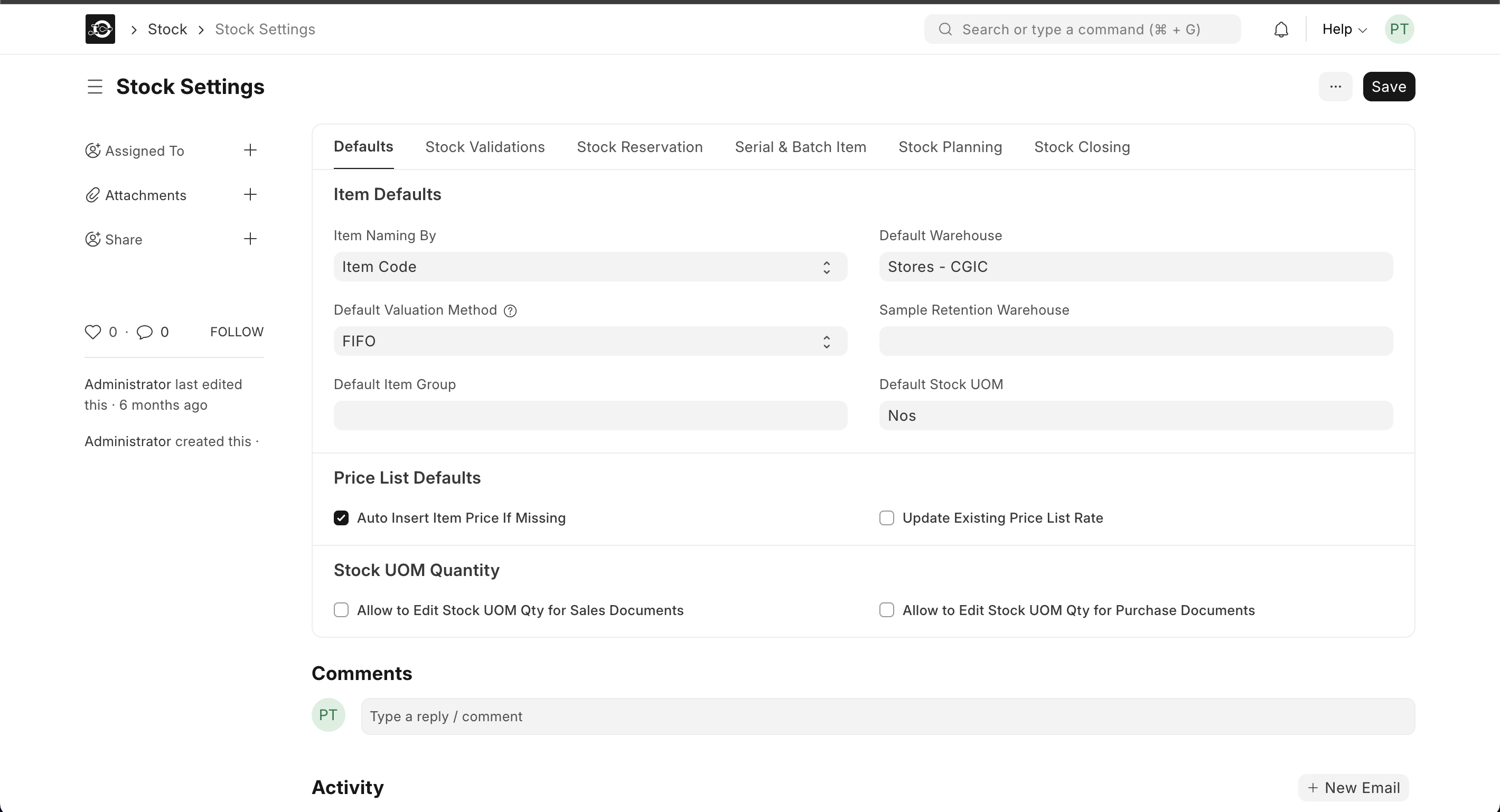
- Go to Stock ▶️ Settings.
- Ensure “Maintain Stock” is checked for all stock-tracked items.
- Configure Default Warehouses
- On each Item record, set Default Warehouse under the Inventory section.
- Optionally, set a Customer-specific or Supplier-specific warehouse in Stock Settings ▶️ Warehouse.
- Use Order to Delivery/Purchase Workflow
- Always trigger inventory adjustments via Delivery Notes and Purchase Receipts—never by manual Stock Entry alone.
- Link each Delivery Note to its Sales Order and each Purchase Receipt to its Purchase Order.
- Automate via Naming Series (optional)
- Standardize your document naming under Setup ▶️ Naming Series for Sales Order, Delivery Note, Purchase Order, and Purchase Receipt.
3. Monitoring & Reporting
- Stock Balance Report: Reflects real-time stock once Delivery Notes and Purchase Receipts are submitted.
- Stock Ledger: Shows every Material Issue/Receipt entry linked back to its originating document.
- Reorder Report: Uses updated stock levels to flag items below their reorder threshold.
Best Practices
Best Practices
- Reserve Before Issue: Always create Sales Orders before Delivery Notes to reserve stock.
- Match Quantities: Ensure Delivery Note quantities match Sales Order lines to avoid stock mismatches.
- Regular Audits: Reconcile Physical Stock vs. Stock Balance using Stock Reconciliation entries.
- Permissions: Restrict manual Stock Entry creation to senior inventory staff to prevent unsynced adjustments.