

1. Where Pricing Is Managed
Product pricing is managed via the Price List module. Each price list contains one or more price entries that map an item to a specific rate, unit of measure (UOM), and currency.2. Steps to Manage and Update Product Pricing
- Access the Price List
- Navigate to: Home > Stock > Item Pricing > Price List
- You can create a new price list (e.g., “Retail”, “Wholesale”, “USD Prices”) or use an existing one.
- Add or Update a Product Price
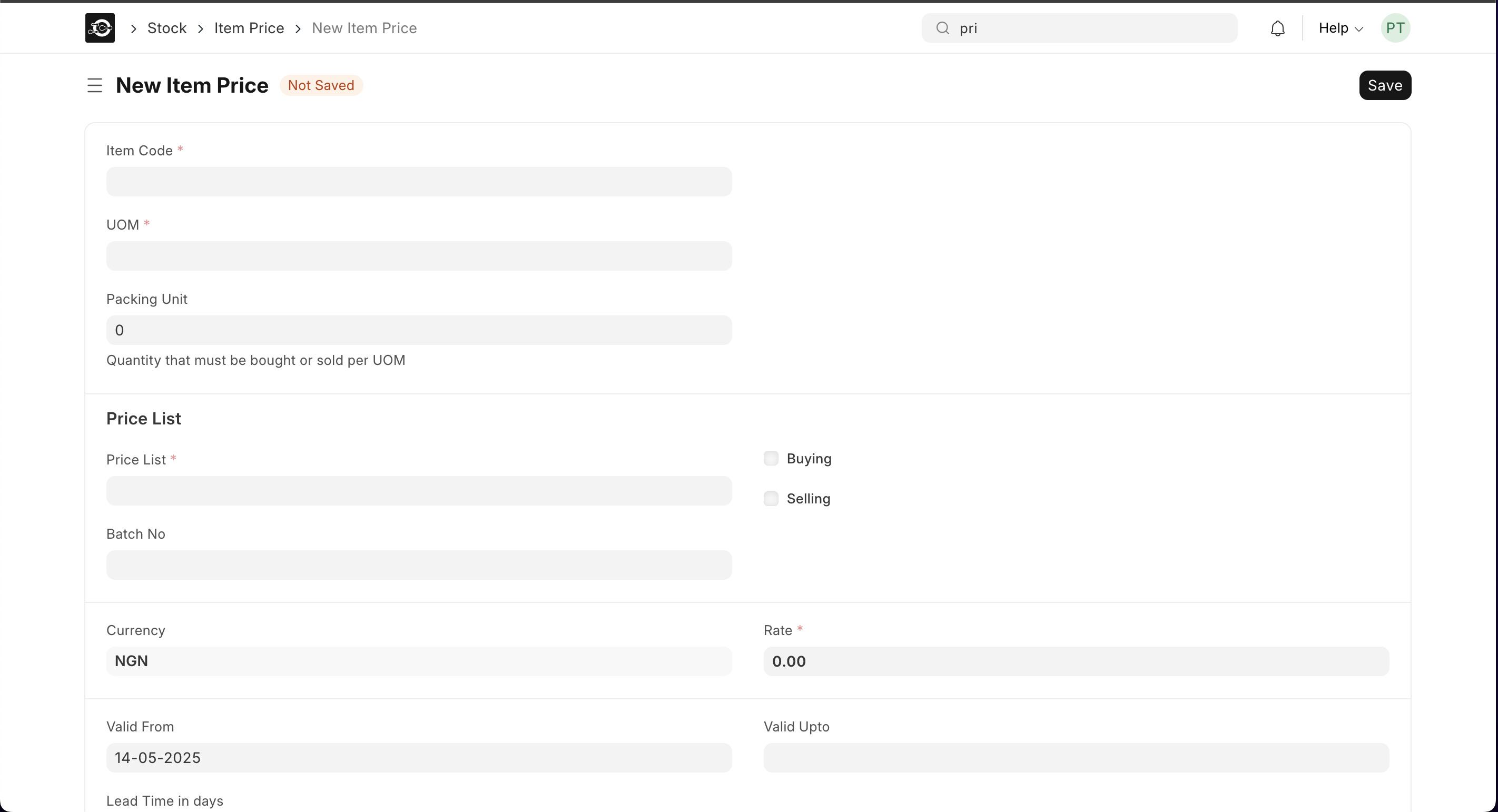
- Go to: Home > Stock > Item Pricing > Item Price
- Click on New to add a new price or search and click an existing one to update.
- Fields to Fill
- Item Code: Select the product to assign the price.
- Price List: Choose which price list this price belongs to.
- Rate: Enter the price (e.g., 2,500.00).
- Currency: Select the applicable currency (e.g., NGN, USD).
- UOM: Select the unit of measure this price applies to (e.g., Each, Carton).
- Valid From / Valid To: (Optional) Set validity dates if the price is time-bound.
To update existing prices, you can search for the item and edit the rate field directly.
Best Practices
Best Practices
- Use separate price lists for different customer groups (e.g., Retail vs Wholesale).
- Use “Valid From” and “Valid To” to automate price changes based on dates.
- Audit prices periodically using the Item Price List Report for inconsistencies.
- Avoid duplicate prices for the same item, price list, and UOM — this can cause confusion during sales.